Video looks and effects: filters, aim, flip and rotate
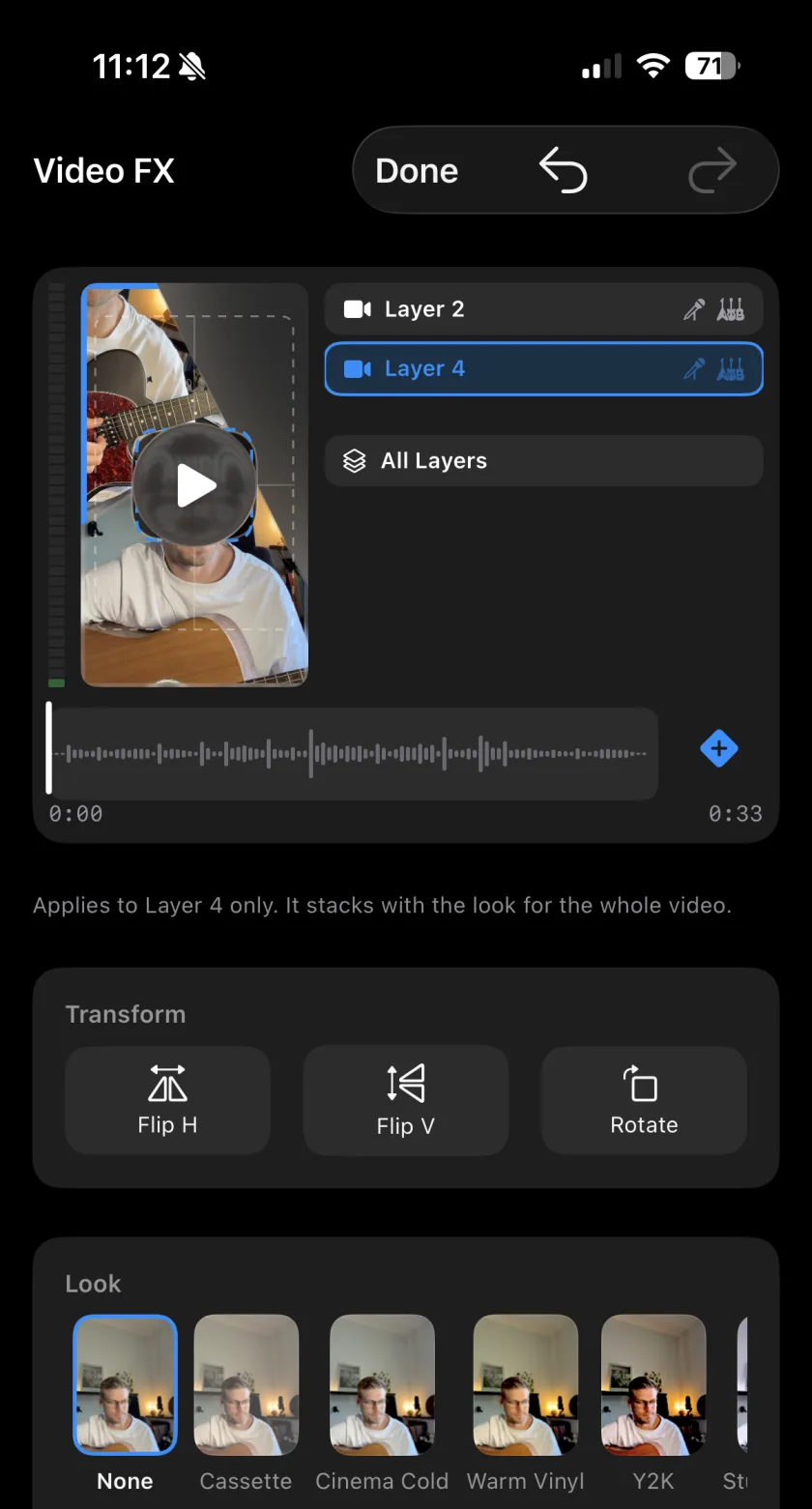
Musaic has 15 video looks, from Cassette and Warm Vinyl to Noir, Comic and VHS, each with a Strength slider. You apply a look to one layer or to all layers, and with Aim you can grade only the person or only the background. Flip and Rotate fix a take that was filmed the wrong way round. Video FX are free.
Musaic - Recording Studio is free for iPhone and iPad. Where a step needs Musaic Pro, the guide says so.
You need: A video project: Mosaic, Live Studio or Twin.
-
Open Video FX
In the More tab, tap Video FX. Choose All Layers or one layer.
-
Pick a look
Swipe through the looks and tap one: Cassette, Cinema Cold, Warm Vinyl, Y2K, Studio Mono, Noir, Silver Fade, Faded, Soft Focus, Comic, Cel, Blockbuster, Bleach, Halftone or VHS.
-
Set the strength
Strength decides how much of the look is applied.
-
Aim it at one part of the picture
For a single layer, Aim applies the look to the Whole picture, only the Subject or only the Background. Instrument counts as subject keeps the guitar with the person.
-
Flip or rotate
Under Transform, use Flip H, Flip V and Rotate in 90° steps.
-
15 looks
Film, print and retro looks, each with a Strength slider.
-
Aim
Grade only the person or only the background of a layer.
-
Transform
Flip a take horizontally or vertically, or rotate it in 90° steps.
-
A look on a layer and one on the whole video?
They stack. The look of a single layer is applied on top of the look for the whole video.
-
Are the looks Pro?
No. Looks and transforms are free.
Musaic - Recording Studio is free on the App Store for iPhone and iPad, with weekly challenges and Ideas. Musaic Pro adds lyrics, animations, chord detection and Audio Lab, and removes the watermark.
- Audio effects for every layer: reverb, EQ and compressionGuide
- How to appear twice in the same video on iPhoneGuide
Written for Musaic 1.4.0.