How to photograph a chord sheet and transpose it to another key
Tap Import, then Camera to photograph a printed chord sheet, or Photos for a screenshot. GetChords reads the chord names and the lyrics on your device. Check the lines it marks, tap Add song, then tap ♯♭ and move every chord up or down in semitones. It reads chord sheets, with chord names such as G or Em above the words, and not notes on a staff.
GetChords is on the App Store for iPhone, iPad and Mac. The guide names every button as the app shows it.
You need GetChords on an iPhone or iPad with iOS 26 or later, or on a Mac with macOS 26 or later. A printed page, a photo or a screenshot with chord names above the lyrics.
-
Check that it is a chord sheet
GetChords reads chord names written as letters, such as G, Em, D7 or F♯m, over the words of a song. A printed songbook page, a page from a song binder or a screenshot of a chord website works. Notes on a staff are not read, so a score cannot be transposed this way.
-
Photograph the page or pick a screenshot
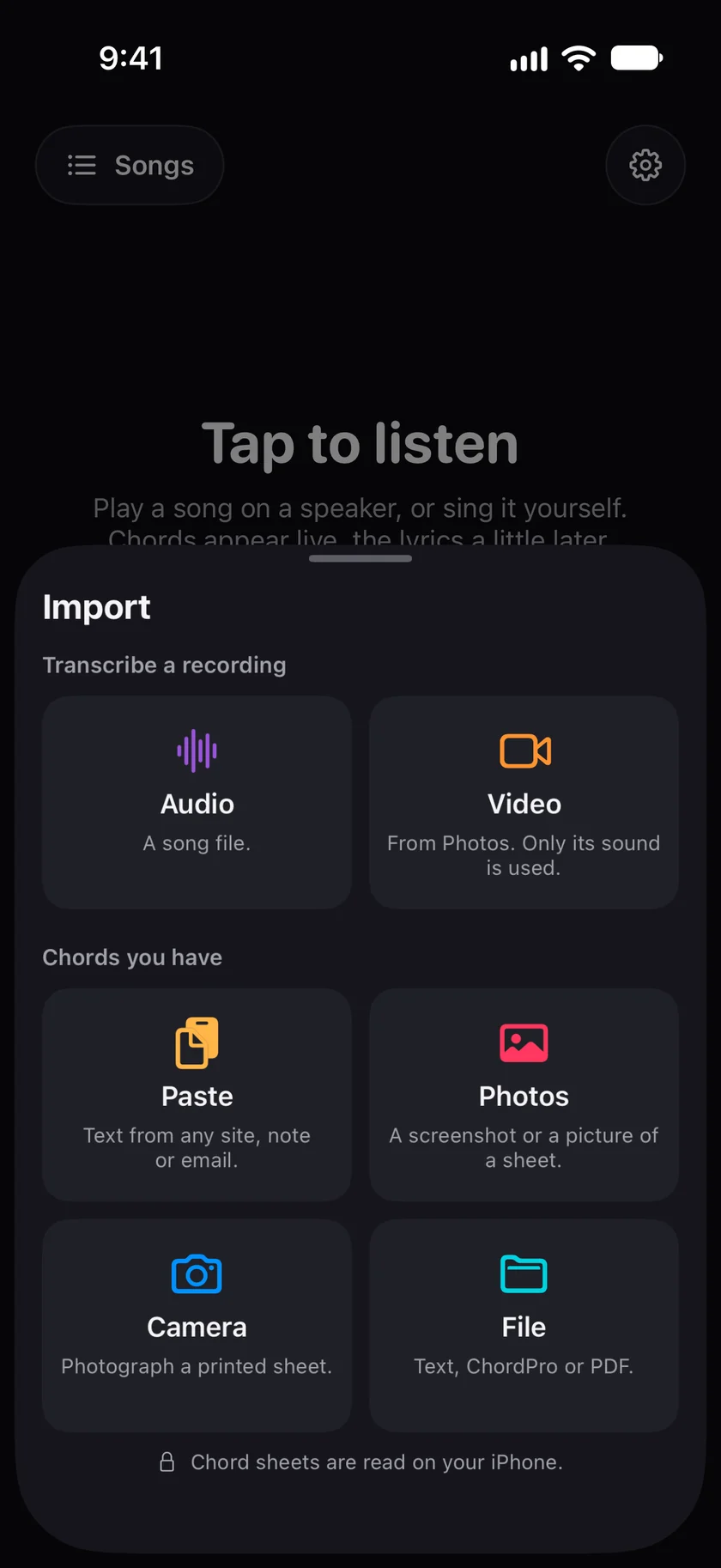
Open GetChords and tap the Import card ("Audio or chords") on the home screen, or Import at the top of Songs. The Import sheet has two groups: Transcribe a recording and Chords you have. Under Chords you have, Camera ("Photograph a printed sheet.") opens the document camera: it finds the page, straightens it and takes up to six pages in a row. Photos ("A screenshot or a picture of a sheet.") takes up to six pictures from your library. On a Mac, Picture opens a file, and Scan with iPhone takes the photo with your iPhone's camera.
iPhone 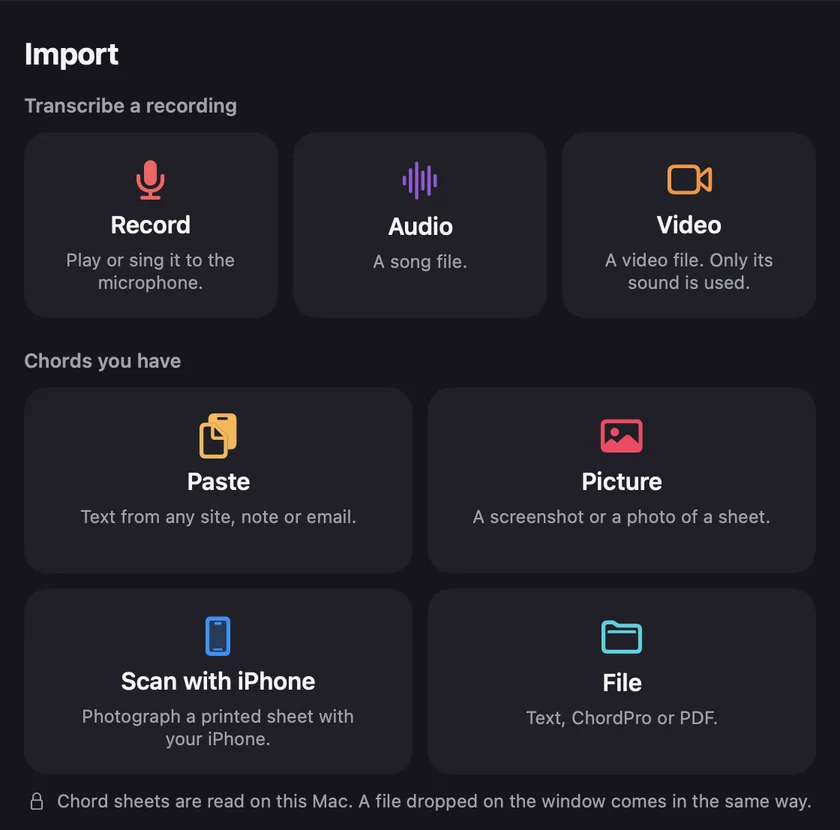
Mac -
Check what it read
Reading the page shows while GetChords reads. Then Found a song shows the title, the number of chords and the first lines. A box such as Check 2 lines against the page lists the lines it read with doubt: compare them with the page. If the page says where the capo goes, a chip such as Capo 3 · sounds in B♭ shows it, and the sheet starts with that capo.
-
Add the song
Tap Add song. The sheet opens with each chord over the word it starts on. If a chord was misread, tap it and pick the right one before you transpose; every later key starts from it.
-
Move it to another key
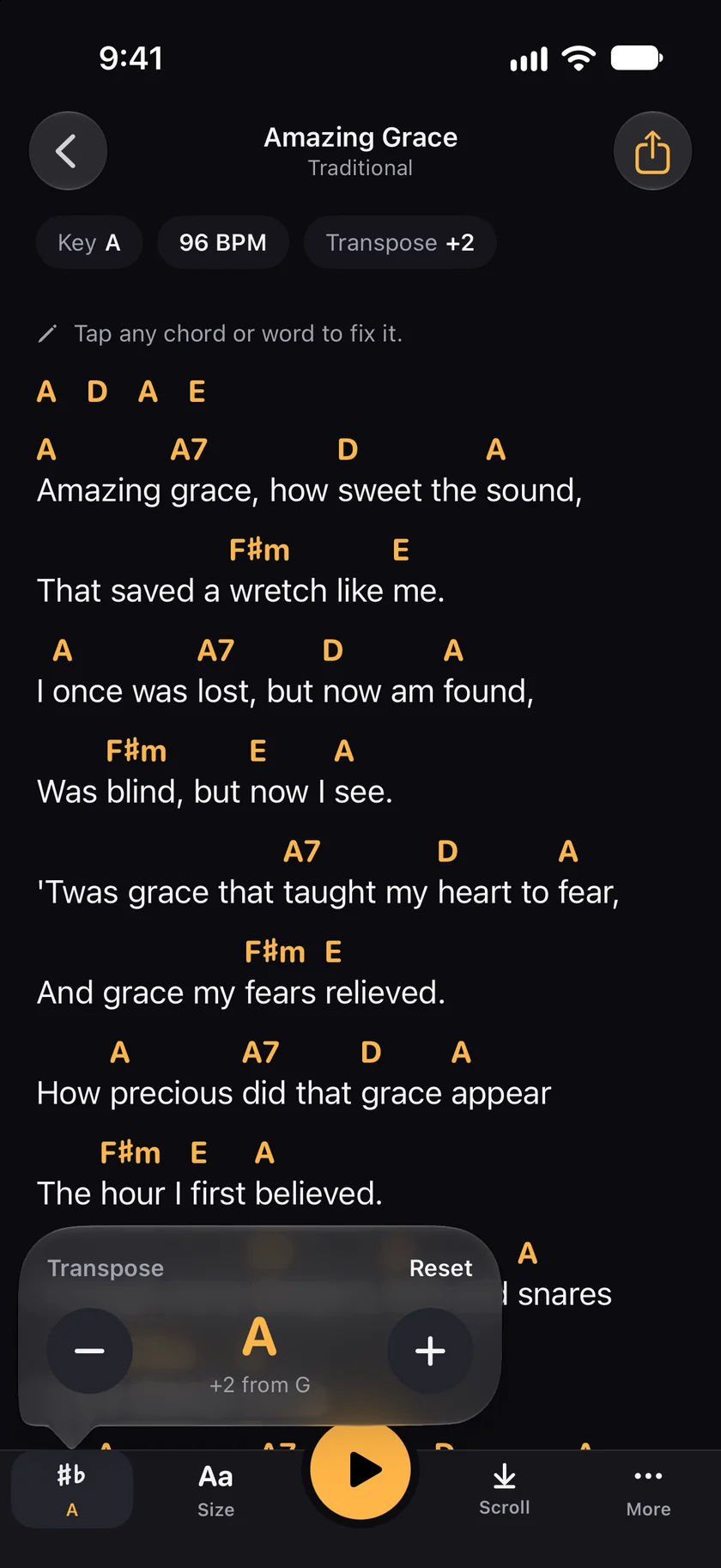
Tap ♯♭ at the bottom left; the key stands under it. Transpose has a minus and a plus, one semitone each, and says how far you are from the original, such as +2 from G. Every chord on the sheet moves at once. Reset goes back to the key of the page.
-
Or keep the key and set a capo
Tap More at the bottom right. Display has Transpose and Capo side by side. With a capo, the sheet shows the shapes to play and the song still sounds in its own key. The capo chart shows what each shape sounds like, fret by fret.
-
Simple chords and diagrams
In Display, Simple chords (C instead of Cmaj7) drops sevenths and other extensions. Chord diagrams has Off, Guitar, Ukulele and Piano. The diagrams follow the new key and the capo.
-
On a Mac
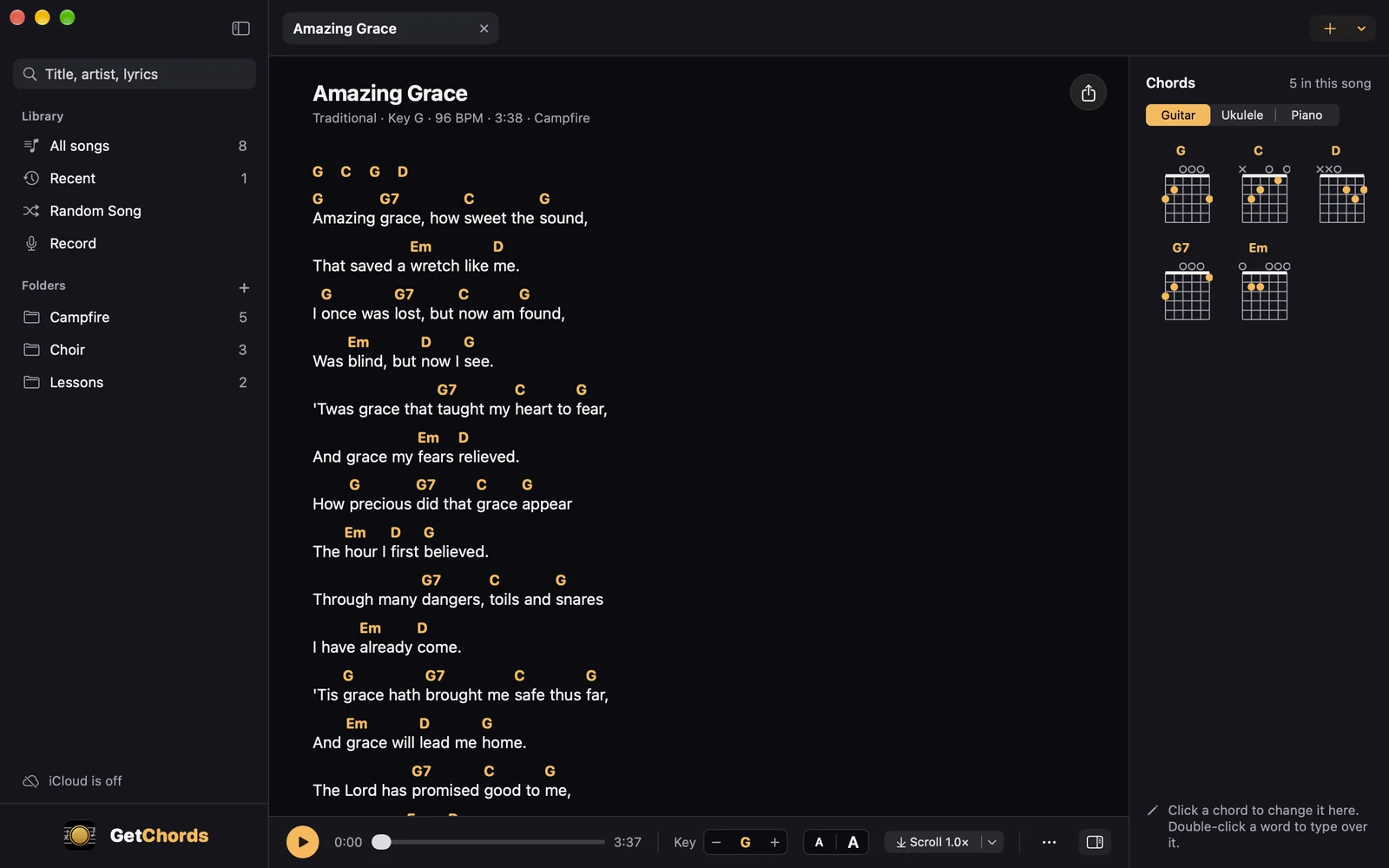
The bar under the sheet has Transpose with a minus and a plus. Capo: under the title opens a menu of frets. Simple chords (C instead of Cmaj7) is in Settings at the bottom of the sidebar, and Show the chords at the right of the bar opens the chords with their diagrams.
Mac
-
Can I take a photo of a chord sheet and transpose it?
Yes. Import the photo under Camera or Photos, add the song, and tap ♯♭. Every chord moves by the same number of semitones, and the lyrics stay as they are.
-
Can I transpose sheet music from a photo?
Not with GetChords, if the sheet music is notes on a staff. GetChords reads chord names and lyrics, such as G, Em and D7 over the words. Those it can transpose.
-
Can I transpose a screenshot of chords?
Yes. Take the screenshot, choose it under Photos, and transpose the song once it is added. A screenshot reads well, because its text is sharp.
-
The sheet is too high for my voice. How far do I go down?
Try two or three semitones down and sing the chorus: tap the minus under ♯♭ once per semitone, and Reset brings back the key of the page.
-
What if the page says capo?
GetChords reads a capo line such as "Capo 3" and shows it as a chip, such as Capo 3 · sounds in B♭. The sheet then shows the shapes to play. Set Capo to None under More to see the chords as they sound.
-
Can I print or send the sheet in the new key?
Yes. Transpose and capo are saved with the song. An export as PDF, ChordPro or image uses the chords as the sheet shows them, in the new key.
-
Is my photo changed?
No. The page stays with the song as you took it; tap the song's title, and Song details shows it. Transpose changes the chord names on the sheet only.
-
Does it work offline?
Yes. Chord sheets are read on your iPhone, or on your iPad or Mac, as the Import sheet says: the text and the pictures never leave the device, so it works offline and needs no permission.
-
Does a photo import count as a song?
It counts toward the 25 free songs, but not toward the 20 songs a day, which count recordings and audio files.
GetChords reads a chord sheet from a photo or a screenshot on your device and plays it in the key you want, with a capo or simple chords. It has no subscription and no account.
- How to turn a photo or screenshot of a chord sheet into chords you can editGuide
- How to transpose chords and find the right capo fretGuide
- How to import chords from a website with Share or copy and pasteGuide
- How to open a ChordPro (.cho) file or a PDF chord sheetGuide
Written for GetChords 1.0. Button names are the ones the app shows.