How to sing one part of a take again
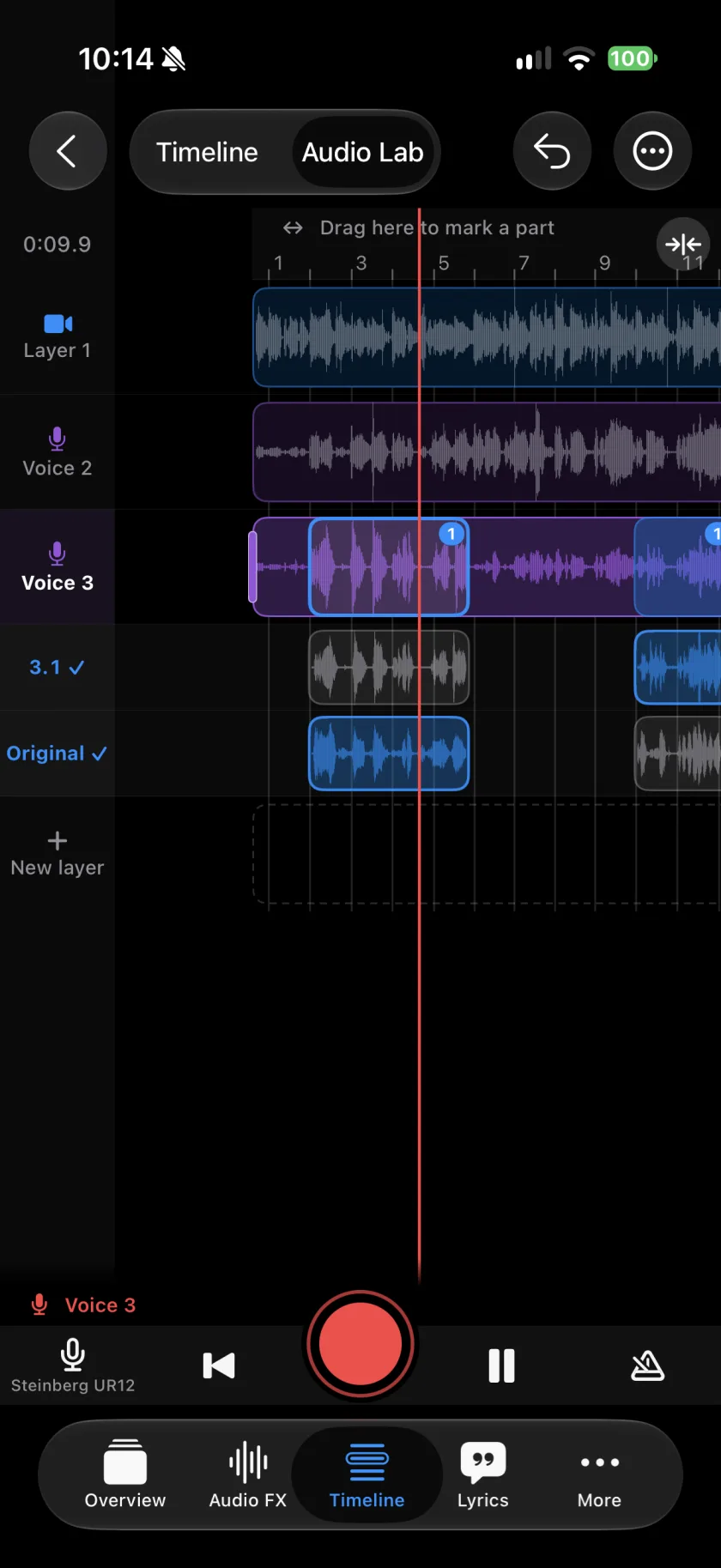
Audio Lab shows every layer with sound as a lane on one screen. Tap a layer, drag over the part you want to sing again and press Record: Musaic plays a bar before it, records only that part and keeps the old one, so you can switch back at any time. Anyone can open Audio Lab and look around; recording in it is part of Musaic Pro.
Musaic - Recording Studio is free for iPhone and iPad. Where a step needs Musaic Pro, the guide says so.
You need: Musaic Pro, and headphones.
-
Open Audio Lab
In the Timeline tab, tap Audio Lab in the top bar, left of Undo.
-
Tap a layer
Tap the lane of the layer you want to fix. It turns red: Record goes into it. To record a new voice over the song instead, tap New layer.
-
Mark the part
Drag on the strip above the ruler over the part you want to sing again.
-
Record
Tap Record. Musaic plays at least one bar before the part, records the part and stops. Play repeats the part, so you can listen to it right away.
-
Pick the best take
Tap the part to see its takes and tap one to hear it. Original plays the old part again. Tap Done when you are happy.
-
Tempo and count-in
Set the tempo, the count-in and the click volume. With the lock on Bars, the edges of the marked part land on bar lines.
-
Repeat
Turn on Repeat and the marked part plays again and again while you record. Every pass is a take.
-
Old line
In the More menu, Old line decides whether you hear the old take while you sing. Auto plays it in headphones and not on the speaker.
-
Play all layers
Sing to the whole song, or switch to Play the target only to hear just this layer.
-
Auto-align layers
In the More menu, Auto-align layers measures each layer against the top one and moves it into time.
-
Audio FX
The Audio FX button in the transport opens the effects of the layer Record goes into.
-
Is my original take lost?
No. Only the marked part is replaced, and the old one is kept. Tap Original to hear it again.
-
Can I try several times?
Yes. Every take over the same part is kept. Tap the part to choose the one you hear.
-
The playback ends up in my take
On the phone speaker, the microphone records the backing into your take. Use headphones for a clean take.
-
I do not have Musaic Pro
You can still open Audio Lab, tap lanes, play and mark a part. Record then offers Musaic Pro.
Musaic - Recording Studio is free on the App Store for iPhone and iPad, with weekly challenges and Ideas. Musaic Pro adds lyrics, animations, chord detection and Audio Lab, and removes the watermark.
- How to record a song with several tracks on your iPhoneGuide
- Headphones, AirPods and the speaker: recording without bleedGuide
- Audio effects for every layer: reverb, EQ and compressionGuide
Written for Musaic 2.0.0.