How to find the chords of a song you hear
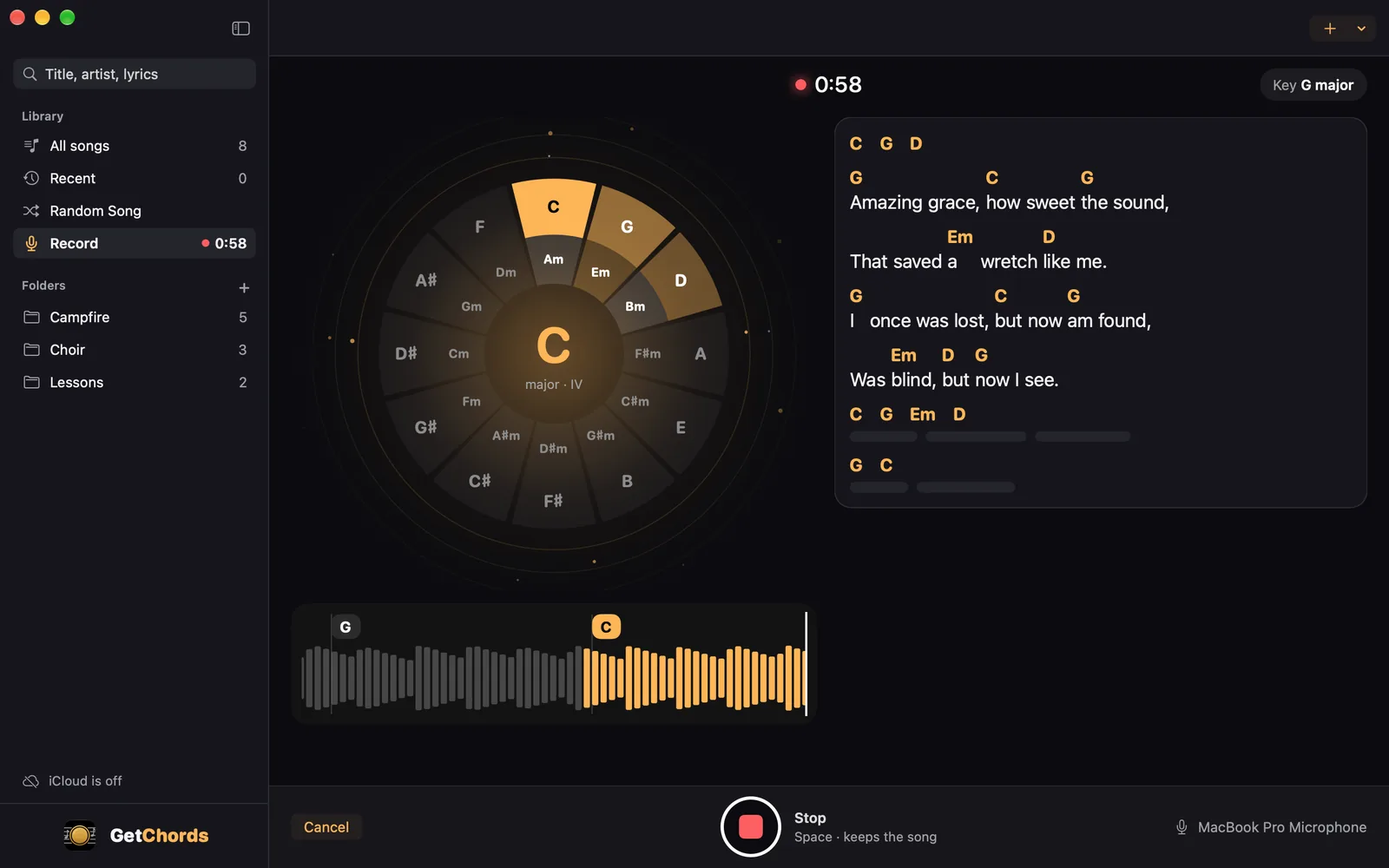
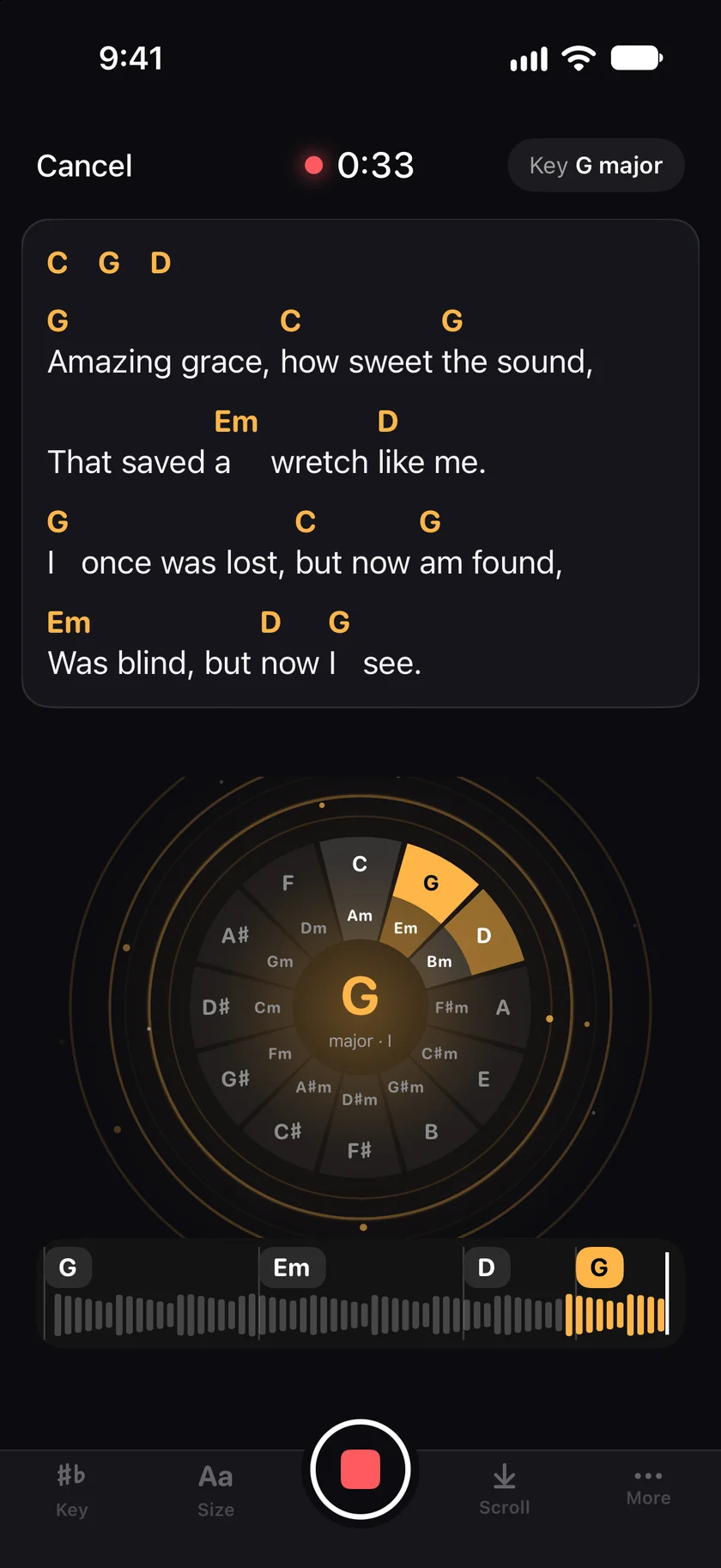
GetChords identifies chords by sound. Open it, tap Tap to listen and hold the iPhone near the radio or the speaker. The chords light up while the song plays and the lyrics follow a little later. Tap Stop at the end: the sheet opens with the chords above the words. Some chords need a second look, so tap one to hear it and change it. On a Mac, click Record in the sidebar.
GetChords is coming to the App Store for iPhone, iPad and Mac. The guide names every button as the app shows it.
You need GetChords on an iPhone or iPad with iOS 26 or later, or on a Mac with macOS 26 or later. A song that plays where your device can hear it, up to 5 minutes long.
-
Start listening
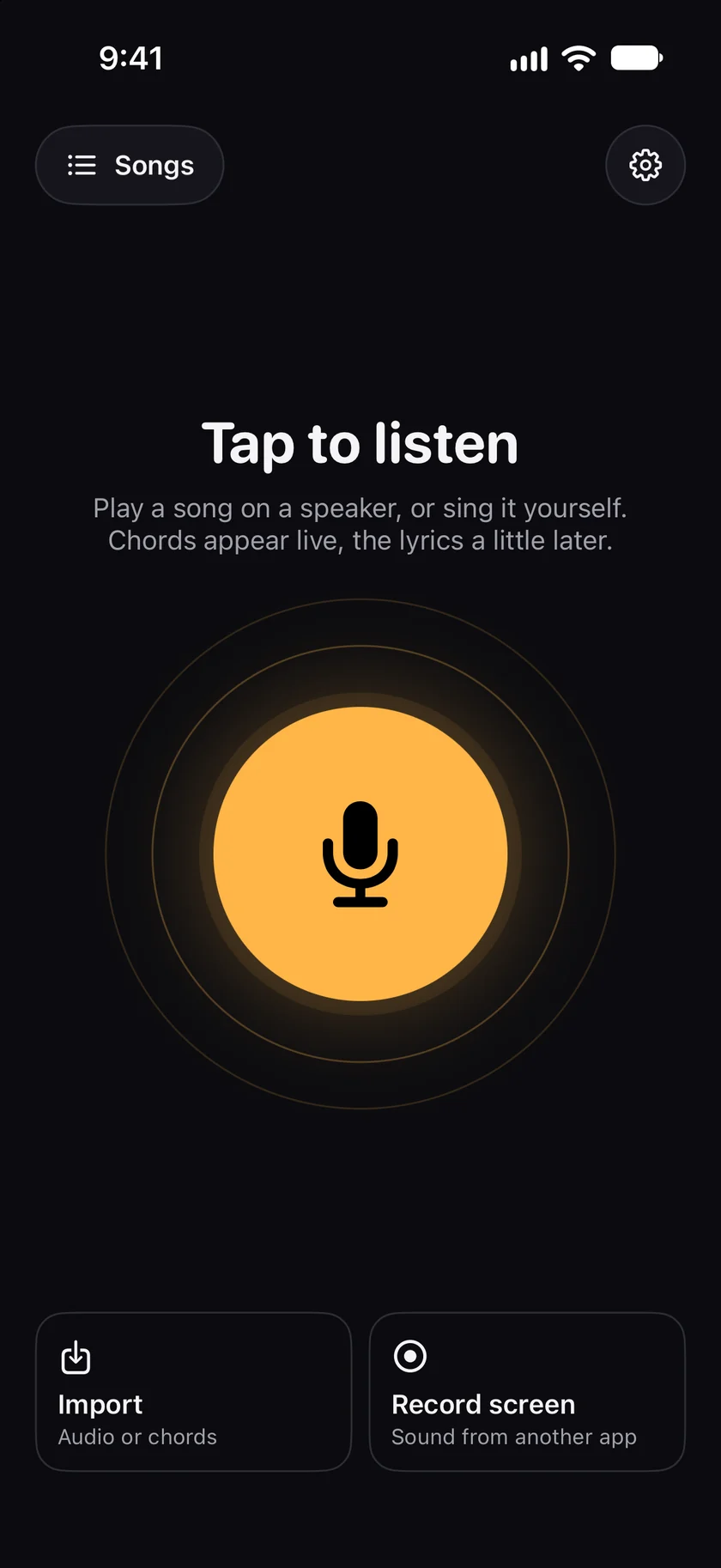
Open GetChords and tap Tap to listen. The line under it says what it does: "Play a song on a speaker, or sing it yourself. Chords appear live, the lyrics a little later." The first time, GetChords downloads its chord recognition once ("Getting chord recognition ready").
iPhone -
Choose about the lyrics
Before your first song, GetChords asks Allow lyrics online?. The chords are always worked out on your device. For the lyrics, the recording may go to a speech recognition service. Tap Allow lyrics for chords and lyrics, or Chords only. You can change it later in the settings, behind the gear button on the home screen.
-
Let the song play
Keep the iPhone close to the speaker. The chord you hear lights up on a circle of fifths, with the key at the top, such as Key G major. The first lines of lyrics appear above it as the song goes on. Until the first chord it says Listening for the first chord.
-
Stop at the end of the song
Tap the Stop button at the bottom. GetChords stops on its own at 5:00 and counts down the last 30 seconds. Cancel at the top left throws the take away, after Discard this recording?.
-
Let it finish the sheet
The sheet opens at once. The line above the middle button says what is still running: Finding the chords, then Writing the lyrics with a percentage. Each chord stands above the word it starts on, with the key and the tempo at the top.
-
Check the chords by ear
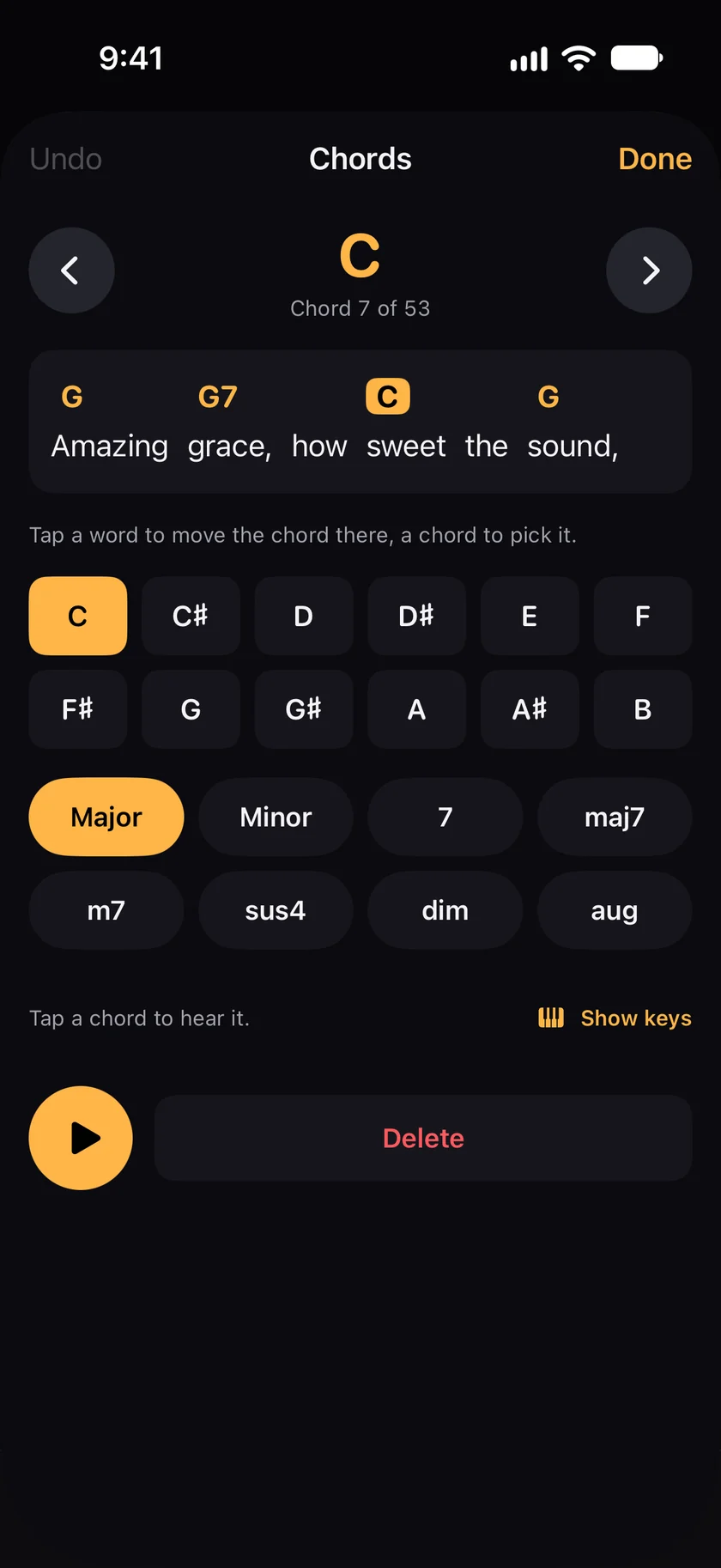
Tap a chord. The Chords panel shows which one it is, such as Chord 5 of 24. Pick another root and kind, and play that part of the song to hear it against the recording. Tap a word to move the chord there. Change all changes every chord of that kind in the song. Tap a word of the lyrics to correct it. Your recording is never changed.
iPhone 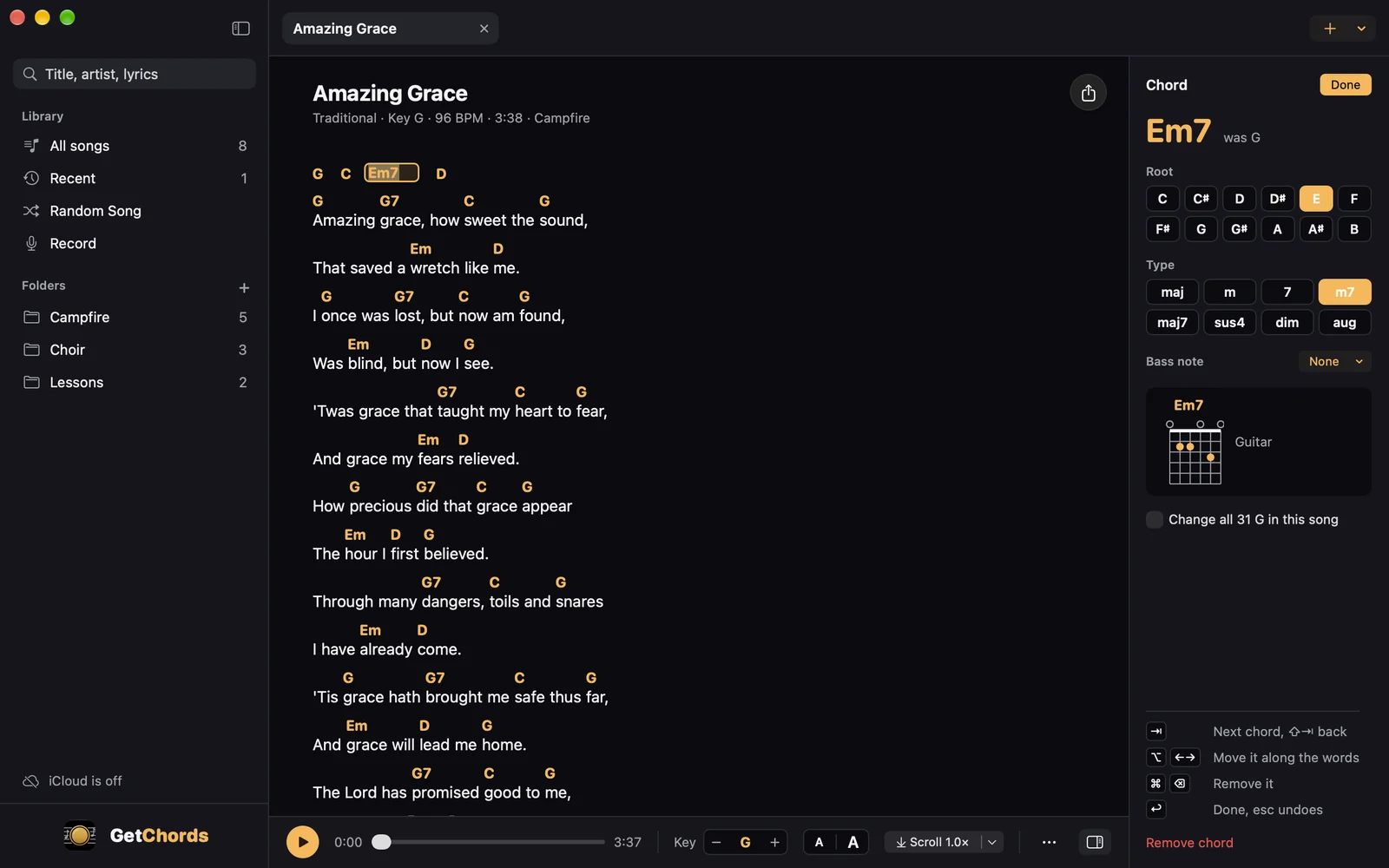
Mac -
Play along
The middle button plays the recording with the sung line marked. Scroll sets an autoscroll instead, and ♯♭ at the bottom left transposes. The transpose guide covers the key, the capo and the chord diagrams.
-
On a Mac
Click Record in the sidebar, or choose Record a Song in the File menu (⌘R). Pick the input under Microphone, such as the built-in microphone, an audio interface or AirPods, then click Record or press Return. Space stops and Esc cancels, after a question. You can open a song or the library while the take goes on. After Stop the song opens in a new tab, and the lyrics follow as on the iPhone.
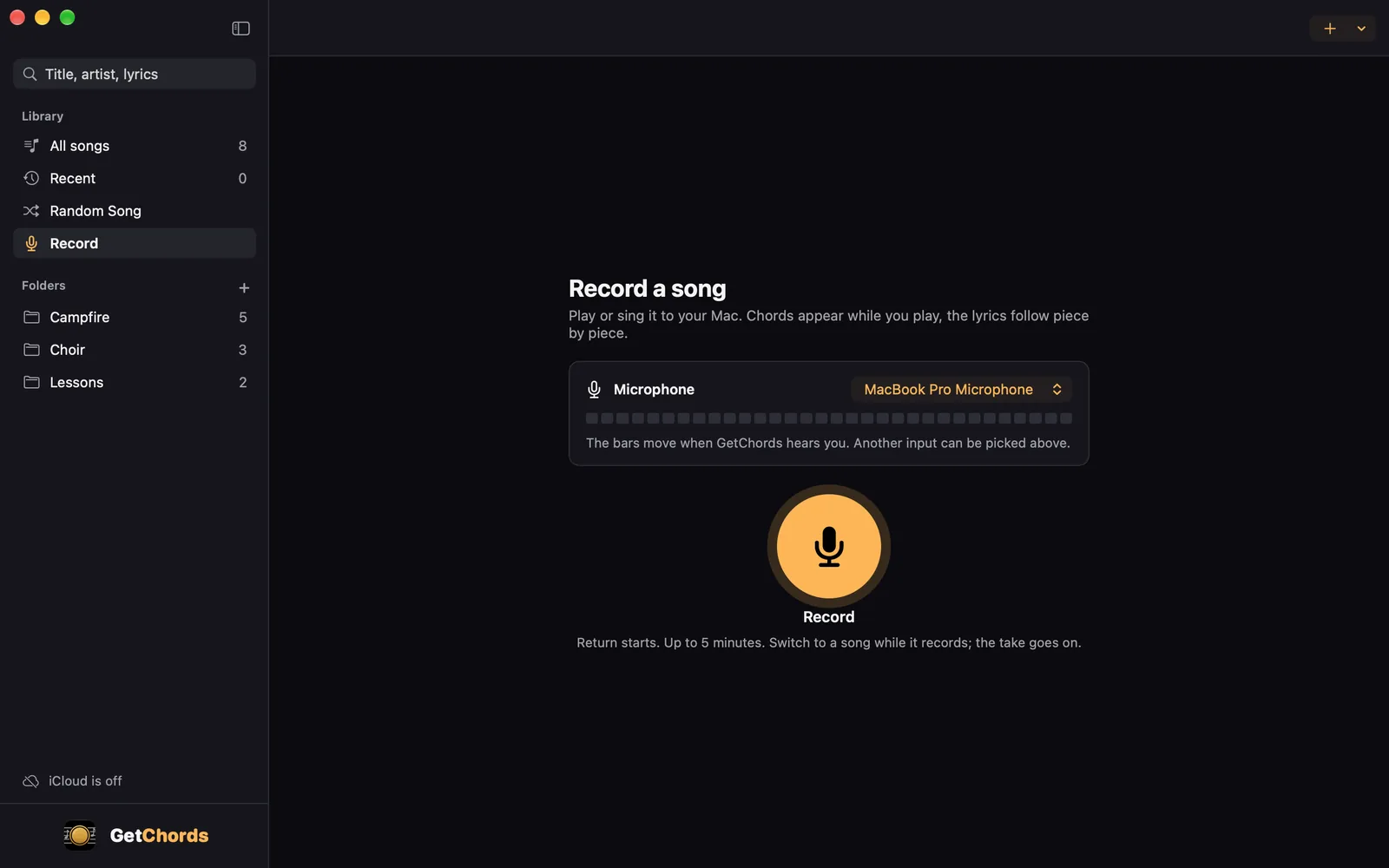
Mac
-
How do I find the chords of a song?
Play the song where your iPhone or iPad can hear it, tap Tap to listen in GetChords, and tap Stop when the song is over. GetChords writes the chord sheet with the lyrics. For a song file or a video, see the guide to audio files.
-
Is there an app that identifies chords by sound?
GetChords does: it listens through the microphone and names each chord as it hears it, works out the key and the tempo, and writes the lyrics under the chords. It runs on iPhone, iPad and Mac.
-
Can it show the chords live while the song plays?
Yes. The chord you hear lights up on a circle of fifths while the song runs, and the first lines of lyrics come in a little later. The full sheet opens when you tap Stop.
-
How accurate is AI chord detection?
Not perfect. The chords come from what the app hears, so some will need a second look. A clear recording close to the speaker helps. Talking and noise near the iPhone are part of the recording, and they can end up in the lyrics.
-
How do I check the chords by ear?
Tap a chord on the sheet and play that part of the song: you hear the chord against the recording. Try another root or kind until it fits, and use Change all when the same chord is wrong everywhere.
-
Can I find the chords of a song I sing and play myself?
Yes. Tap Tap to listen and play. The chords follow your guitar or piano and the lyrics follow your voice, the same way as for a song on a speaker.
-
Does my song leave my device?
Your songs and sheets are stored on your device, and the chords are worked out there. With iCloud, your songs also go to your private iCloud, so they reach your other devices. We have no access to it. On an iPhone or iPad with at least 6 GB of memory, GetChords writes the lyrics on the device too, once its speech model is downloaded. Until then, and on other devices, it sends the recording, in pieces, over an encrypted connection to our server and a speech recognition service, which return the text. That needs your permission and an internet connection. The privacy policy names the services.
-
How long can a song be?
Up to 5 minutes. You can add up to 20 songs a day by listening or from audio files.
-
What does it cost?
The first 25 songs are free, recorded or imported. After that, one purchase unlocks unlimited songs on your iPhone, iPad and Mac. It is not a subscription, and there is no account and no ads. Songs you already have stay readable, editable and exportable without the purchase.
-
Can I record a song on a Mac?
Yes. Click Record in the sidebar and play or sing to your Mac, through its microphone, an audio interface or AirPods. The chords appear while you play and the lyrics follow, as on the iPhone. The step "On a Mac" above shows it, and the guide to your devices covers the sync.
GetChords listens to a song and writes its chord sheet, with the chords above the lyrics. It has no subscription and no account.
Coming to the App Store
- How to find the chords of an audio file, an MP3 or a videoGuide
- How to transpose chords and find the right capo fretGuide
- How to import chords from a website with Share or copy and pasteGuide
- Your chord sheets on iPhone, iPad and MacGuide
Written for GetChords 1.0. Button names are the ones the app shows.